Payment links from services like PayPal, Venmo, Stripe, Square, or a bank's invoicing tool are usually long and awkward to type, which makes them a natural fit for a QR code. Whether you run a small business, freelance, sell at a market stall, or simply need to split a bill, turning your payment link into a QR code lets someone pay in seconds by scanning with their phone camera. Because the free QR code generator creates unlimited static codes directly in your browser, you can build a payment QR code for an invoice, a table tent at a pop-up shop, or a printed sign near your register at no cost. This guide covers choosing the right payment link, formatting it correctly, and placing the code where customers will actually use it.
How a Payment QR Code Works
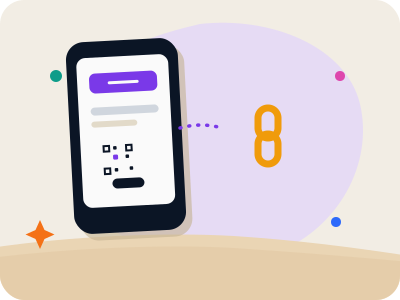
A payment QR code does not process the transaction itself, it simply encodes the URL of a payment page, invoice, or checkout link that your customer's phone opens once scanned. From there, the customer completes the payment through the normal process of whatever service that link belongs to.
This means the security and reliability of the payment itself depends entirely on the underlying payment service, not the QR code. The QR code is simply a faster, typo-proof way to get someone to the correct payment page instead of them typing a long URL or searching for your business by hand.
Because of this, it is important to always double check the link you are encoding actually belongs to your account and the correct amount or invoice, since a QR code will faithfully direct someone to whatever URL you provide, correct or not.
Choosing the Right Payment Link to Encode
Make your own custom QR code
Scan it — this code opens our free custom QR generator.
Create yours freeMany payment services offer a personal or business payment link, ideal for recurring, general-purpose payments where the amount varies each time, like tips or informal invoices.
For a specific transaction or invoice, generating a unique payment link tied to that exact amount, through your invoicing software or checkout platform, is usually a better choice than a general profile link, since it removes the step of the customer having to manually enter the correct amount themselves.
If you accept multiple payment methods, decide which one to prioritize on the printed material, since a single QR code can only encode one link. Some businesses print several smaller codes side by side, each labeled with the payment method it represents, to give customers a choice.
Step-by-Step: Creating a Payment QR Code
Start by generating or copying your payment link from whichever service you use, and open that link in a browser first to confirm it leads to the correct page and, if applicable, the correct amount.
Open the free QR code generator, choose the URL type, and paste the confirmed payment link. Preview the generated code and, if you plan to print it, consider keeping the color scheme simple, since a payment QR code benefits from looking clean and trustworthy rather than heavily stylized.
Download the code as a JPG once you are satisfied, and place it on your invoice, receipt, or printed sign. Because each code is generated instantly and for free, you can create a new one any time your payment link changes, such as switching services or updating an invoice amount.
Where to Use a Payment QR Code
Invoices and receipts are a natural fit, letting clients pay directly from a printed or emailed document rather than searching for your payment details separately. Freelancers and small service providers often add a payment QR code to the bottom of an invoice alongside the traditional bank details.
In-person sales, farmers markets, pop-up shops, food trucks, and craft fairs benefit from a printed payment QR code at the register or table, letting customers pay without cash or a card reader, especially useful as a backup when a card terminal has connectivity issues.
Splitting a bill among friends is a simpler, informal use case, where a payment QR code linked to a personal payment profile printed on a small card or shared as an image makes settling shared expenses faster than exchanging usernames verbally.
Building Customer Trust in a Payment QR Code
Because payment scams involving fraudulent QR codes have made some people cautious about scanning unfamiliar codes, especially in public settings, it helps to clearly label what the code is for, such as 'Scan to pay [Business Name]' rather than presenting a bare code with no context.
Placing the code somewhere it cannot easily be tampered with, such as printed directly into a receipt or invoice rather than a removable sticker at a public counter, reduces the risk of a fraudulent code being placed over yours. Businesses using printed signs at a register should periodically check that the sign has not been altered or covered.
Consistent branding, using your business's actual name, logo, and colors around the code, also reinforces to customers that the code is legitimate and belongs to the business they are already interacting with, rather than an unfamiliar third-party link.
Testing Your Payment QR Code
Before relying on a payment QR code for real transactions, scan it yourself and walk through the entire payment process end to end, confirming the amount, recipient name, and payment method all display correctly on the linked page.
Test with more than one phone if possible, since some payment apps behave slightly differently opening links from an iPhone camera versus an Android camera, and confirm the experience is smooth on both before printing the code at scale.
If your payment link is tied to a specific invoice amount, remember the code will only work correctly for that transaction. Reusing the same printed code for a different amount or a different customer would send the wrong information, so treat invoice-specific codes as single-use rather than reusable.
Common Mistakes to Avoid
Encoding a personal payment profile link when a specific invoice amount is needed, or vice versa, is a frequent mix-up that leads to confusion over how much to pay. Match the type of link to the actual use case before generating the code.
Printing a payment QR code without any label or explanation risks customers ignoring it entirely, since many people are understandably cautious about scanning unlabeled codes tied to payments. Always include a short, clear instruction next to the code.
Reusing a printed sign with an outdated payment link, after switching services or updating account details, can send customers to a dead or incorrect page. Since a static code cannot be edited after creation, review printed payment signs periodically and reprint them whenever your underlying payment details change.
Frequently asked questions
Is it safe to accept payments through a QR code?
The QR code itself simply opens a link, so safety depends on the underlying payment service that the link belongs to. Always confirm the link you encode leads to your own verified account before sharing the code publicly.
Can I use one payment QR code for different amounts?
A code linked to a general payment profile usually lets the payer enter their own amount, making it reusable. A code linked to a specific invoice is tied to that invoice's amount and should not be reused for different transactions.
Do I need a business account to create a payment QR code?
No, the QR code generator itself does not require any account or payment processor connection. You simply need a payment link from whichever service you already use, personal or business, and paste that link into the free generator.
What happens if I change payment services after printing a QR code?
Because the code is static, it will continue pointing to the original link even after you switch services, so you would need to generate and reprint a new code. If you expect to change payment methods often, consider printing on a replaceable sign rather than a permanent surface.