Reading a Wi-Fi password aloud letter by letter, or watching a guest squint at a handwritten sticky note on the router, is a small but genuinely avoidable friction point in most homes and businesses. A Wi-Fi QR code eliminates it entirely: a guest scans the code with their phone's camera, and the device offers to join the network directly, no manual typing required. This guide explains exactly how these codes work under the hood, how to generate one correctly, where the security considerations lie, and how to fix the most common scanning problems.
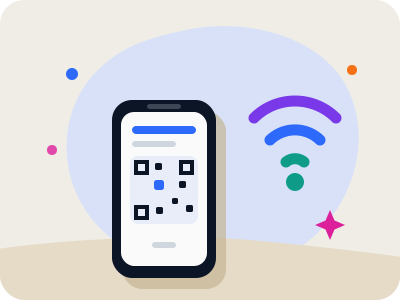
How a WiFi QR code actually works
A Wi-Fi QR code isn't fundamentally different from any other QR code in terms of the pattern itself; what makes it special is the specific structured text format encoded inside it, which phone operating systems recognize and treat differently than a plain URL or text string. This format includes the network name, the security type, and the password, all combined into a single string following a standard convention that both Android and iOS understand.
When a phone's camera app scans a code following this recognized format, instead of just showing a plain block of text or opening a browser, it presents a native prompt offering to join that specific network directly, pre-filling the password behind the scenes without ever displaying it as readable text to the person scanning. This is what makes the experience feel seamless compared to a generic QR code.
Because this recognition relies on the phone's operating system understanding the structured format, results can vary slightly across very old devices or unusual camera apps that don't support it, though the vast majority of smartphones in use today, on both major platforms, handle Wi-Fi QR codes correctly out of the box without needing a separate app.
What information you need before generating one
Before creating a Wi-Fi QR code, gather three pieces of information exactly as they're configured on your router or network: the network name, formally called the SSID, the password, and the security protocol in use, most commonly WPA or WPA2 for modern home and business networks. Getting any of these wrong, particularly a mistyped password, will produce a code that looks correct but fails to actually connect anyone who scans it.
Double-check the network name and password for exact capitalization and any special characters, since both are case-sensitive and a code generated with a typo will silently fail rather than throw an obvious error, leaving you to troubleshoot a connection issue that's really just a data-entry mistake. Copying these details directly from your router's admin settings page, rather than typing from memory, meaningfully reduces this risk.
If your network uses a security type other than the common WPA or WPA2 standard, such as an open network with no password at all, or the newer WPA3 standard, check that whatever generator you're using supports specifying that correctly, since selecting the wrong security type can also cause a generated code to fail even with a correctly typed password.
Generating the code step by step
Start by opening a QR code generator and selecting the Wi-Fi or network option specifically, rather than the generic text or URL option, since this ensures the tool encodes your input using the structured format phones recognize, rather than simply turning your network details into a plain block of text that won't trigger the native join prompt.
Enter the network name exactly as it appears on your router, then enter the password with the same care, ideally by copying and pasting from your router's settings rather than retyping from memory, and select the correct security protocol from whatever options the generator provides. Once all three fields are filled in accurately, generate the code and it will be ready to test immediately.
Before printing or sharing the code widely, always test it yourself first, using your own phone in airplane mode or with Wi-Fi initially turned off, so you can confirm the scan genuinely triggers the join prompt and successfully connects, rather than assuming it works simply because the code was generated without an error message.
Where to place a WiFi QR code
For homes, a small printed card or laminated tag placed near the router itself, or in a common area like an entryway or kitchen where guests naturally gather, makes the code easy to find exactly when someone needs it, without cluttering more prominent parts of the home with a permanent sign.
For businesses like cafes, offices, or short-term rentals, placing the code somewhere naturally visible during the moment a guest would want it, such as on a table tent, near a checkout counter, or included in a welcome guide for a rental property, works better than a location that requires someone to go looking for it. Many businesses also include the code directly on printed receipts or menus for added convenience.
Regardless of placement, keep the code reasonably sized and printed with strong contrast, following the same general sizing and contrast guidance as any other QR code, since a Wi-Fi code that's too small or low-contrast to scan reliably defeats the entire convenience it's meant to provide.
Security considerations before sharing widely
A Wi-Fi QR code, once generated, effectively contains your network password in a scannable, shareable format, which means anyone who scans or even photographs the code gains the same access as someone who was told the password directly. Treat a printed Wi-Fi QR code with the same level of care you'd give the written password itself, rather than assuming the QR format adds any inherent security beyond convenience.
For networks where broader public access is a concern, such as a business offering guest Wi-Fi to customers, consider setting up a separate guest network with its own password, distinct from any internal network used by staff devices or sensitive equipment. This way, a widely shared or publicly posted Wi-Fi QR code only grants access to the guest network, keeping more sensitive internal network access separately protected.
If a Wi-Fi password is ever changed, whether for routine security rotation or because access needs to be revoked, remember that any previously generated and printed QR codes encoding the old password become obsolete immediately and need to be regenerated and reprinted or redisplayed with the updated credentials, since a static code cannot update itself after the fact.
Troubleshooting a code that won't connect
If a scan opens a join prompt but the connection then fails, the most common cause is a typo in the password entered during code generation, so the first troubleshooting step should always be regenerating the code, carefully copying the password directly from the router rather than retyping it, and testing again before assuming a more complex problem exists.
If scanning the code does nothing at all, rather than showing any join prompt, check whether the code was generated using a plain text option instead of a dedicated Wi-Fi format, since a plain text version of the same information won't trigger the native network-join behavior on most phones, even though it might display the correct-looking text if scanned by a generic QR reader.
If the code works for some phones but not others, this is occasionally related to the security protocol selected during generation, particularly on networks using newer standards like WPA3 that some slightly older devices don't fully support regardless of how the code itself was generated; in these cases, confirming the network's actual security setting on the router itself, and matching that setting during code generation, resolves most cross-device inconsistencies.
Keeping the code useful over time
Since a static Wi-Fi QR code encodes network credentials permanently at the moment of generation, plan for the reality that any password change will require generating a fresh code, and factor this into decisions about durable printing, such as lamination, versus something quicker and cheaper to replace, like a simple printed card, depending on how frequently your network password changes.
For businesses or households that change guest network passwords on a regular schedule for security reasons, it may make more sense to print or display Wi-Fi QR codes using a less permanent method, such as a printed card that's easy to swap or reprint, rather than a heavily laminated or professionally engraved sign that becomes wasted material the next time credentials rotate.
Whatever the setting, periodically re-test any long-standing Wi-Fi QR code, particularly ones placed in busy public-facing areas, to confirm they still connect correctly, since router settings occasionally change during firmware updates or network reconfiguration in ways that can silently break an old code without anyone noticing until a guest reports the problem.
Frequently asked questions
Will a WiFi QR code show my password as readable text when someone scans it?
No, when generated in the proper Wi-Fi format and scanned by a modern phone camera, the device typically offers to join the network directly without displaying the password as plain readable text, though the password is technically embedded in the code's data and could be extracted by anyone deliberately trying to view it.
Does a WiFi QR code work on both iPhone and Android?
Yes, both major mobile operating systems support the standard Wi-Fi QR code format and will show a native join prompt when scanning a correctly generated code, though very old devices or unusual third-party camera apps may not support this behavior.
What happens to my old WiFi QR code if I change my password?
Any previously generated and printed code becomes outdated immediately, since it still encodes the old password permanently. You'll need to generate and reprint or redisplay a new code with the updated credentials for guests to be able to connect successfully.
Is it safe to post a WiFi QR code somewhere publicly visible?
Only if you're comfortable with anyone who sees it gaining network access, since the code functionally contains your password in scannable form. For public-facing situations like a cafe or shared space, using a separate guest network is a safer approach than exposing your primary network's credentials this way.