Paper business cards get lost in wallets, tossed in drawers, or thrown away before the contact ever makes it into a phone. A vCard QR code solves this by encoding your name, phone number, email, company, and website into a scannable square that saves directly to a person's contacts app in one tap. No typing, no misheard spellings, no missing digits. This guide explains exactly how vCard QR codes work, what information to include, and how to build one for free in a few minutes.
What a vCard QR code actually is
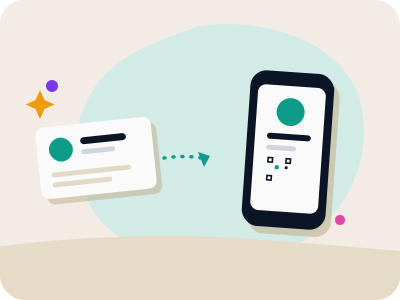
A vCard (short for Virtual Contact File) is a standardized file format that phones, email clients, and address book apps have understood for decades. It stores structured fields like first name, last name, organization, job title, phone numbers, email addresses, and a website URL. When you generate a vCard QR code, the generator writes this structured text into the QR code itself rather than linking out to a webpage.
This distinction matters because it means the recipient's phone can read the vCard data directly from the code and offer to add it as a new contact, without needing an internet connection. Compare that to a QR code that just opens your LinkedIn profile in a browser; the person still has to manually copy details into their contacts. A true vCard QR code skips that step entirely.
Because the format is a published standard, it works the same way regardless of whether the person scanning uses an iPhone, an Android phone, or a basic feature phone camera app. That universal compatibility is exactly why vCards remain the most reliable way to hand someone your details digitally, even in 2026 when apps and platforms come and go constantly.
Why vCard beats a plain text or URL QR code for contact sharing
Make your own business card QR code
Scan it — this code opens our free business card QR generator.
Create yours freeA plain text QR code showing your phone number and email as unformatted text will scan fine, but the recipient's phone just displays the text on screen. They still have to manually copy each field into a new contact entry, which is exactly the friction QR codes are supposed to remove. A vCard code, by contrast, triggers the native 'Add Contact' prompt with every field already filled in correctly.
A URL-based QR code that links to your website or an online business card page requires an active internet connection to work and depends on that page staying live. If your hosting lapses or the link changes, the code becomes useless retroactively for anyone who scanned it earlier expecting to revisit it. A vCard is self-contained; once scanned, the contact is saved locally and never depends on a server again.
The one tradeoff is that vCard QR codes tend to hold more data than a short URL, which can make the code itself visually denser with more modules. For a name, phone, email, and company this is rarely noticeable, but if you try to cram in a long bio or multiple addresses, the code can become harder to scan at small sizes, so keep the fields concise.
What information to include (and what to leave out)
Stick to the fields a new contact actually needs at first meeting: full name, job title, company, one phone number, one email, and your website if relevant. These are the fields most vCard generators expose as simple form inputs, and filling them in produces a clean, fast-scanning code without you needing to know any technical formatting.
Resist the urge to add a second phone number, a physical mailing address, a fax number, and three social media links just because the format technically supports it. Every extra field increases the amount of data encoded, which increases the density of the QR code and can slow down scanning or reduce reliability at small print sizes like a lapel badge or the corner of a flyer.
If you want to include social profiles, consider putting one link (like a LinkedIn URL) in the website field instead of adding separate social fields, or offer a secondary QR code specifically for that purpose. Keeping the primary vCard code lean and focused on how to reach you directly usually serves recipients better than an exhaustive contact dossier.
Step-by-step: creating a vCard QR code for free
Open a free QR code generator and select the vCard or 'Contact' QR type from the list of code types, rather than the default URL or text type. This tells the tool to build a properly formatted vCard file behind the scenes instead of treating your input as a plain link.
Fill in the form fields: first name, last name, phone number, email, organization, job title, and website. As you type, a live preview QR code typically updates in real time, so you can already see roughly how dense the code is getting before you finalize anything.
Once the fields look correct, customize the code's appearance if you like: pick a foreground and background color that matches your brand, and optionally add a small text logo overlay in the center. On a free tool this customization, along with the vCard data itself, is generated entirely in your browser, so your contact details never have to leave your device to produce the code.
Download the finished code as a JPG image with no watermark, no sign-up, and no expiry date, then drop it into your email signature, print it on a physical card, or add it to a conference lanyard. Because it is a static code, it will keep working indefinitely with no ongoing account or subscription required.
Where to actually use a vCard QR code
Printed business cards remain the classic use case: instead of, or alongside, printed text, add the QR code to the back of the card so a scan instantly saves your details. This is especially useful at trade shows and conferences where people meet dozens of contacts in a single day and are far more likely to scan a code on the spot than to manually type your number later from a stack of cards.
Email signatures are another strong fit. Attaching a small vCard QR code image to your signature block lets recipients who read your email on a phone scan the screen directly and save you as a contact without switching apps or copying text.
Name badges, table tents at networking events, and the back of a freelancer's invoice are all places where a small, unobtrusive vCard code adds real value without cluttering the design. Even a sticker on a laptop lid at a co-working space can serve as an always-available way for someone to grab your contact info on the spot.
Keeping your vCard QR code accurate over time
A static vCard QR code encodes your contact information permanently at the moment of creation, so if your phone number or job title changes later, the old printed codes will still contain the outdated details. This is simply how static codes work: the data is baked into the pattern itself rather than fetched from a server each time.
For most people this is a minor consideration since business cards and signatures already get reprinted or updated periodically anyway, and refreshing the QR code alongside a card redesign costs nothing extra. If you expect your details to change frequently, such as a rotating phone extension in a large office, keep the printed materials in smaller batches so old codes don't linger for years.
If your role genuinely requires updating the destination behind a code without reprinting it, such as syncing to a CRM or changing where a code points after it's already distributed, that calls for a dynamic QR code rather than a static one, which is a separate capability worth exploring if update frequency becomes a real pain point.
Design tips for a scannable, on-brand vCard code
Choose high-contrast colors, dark modules on a light background remain the most reliable combination for camera scanning across lighting conditions. If you want to match brand colors, keep the foreground dark enough and the background light enough that the contrast ratio stays strong; pastel-on-pastel combinations often fail to scan under dim lighting.
A small text logo or initials in the center of the code is a nice branding touch and generally does not interfere with scanning because QR codes have built-in error correction that tolerates a modest amount of obstruction in the middle. Keep any center graphic small relative to the overall code size to be safe.
Test the finished code before printing a large batch: scan it yourself with two or three different phones, ideally both iPhone and Android, and confirm the contact card that appears has every field spelled correctly. A five-minute test avoids the embarrassment of handing out a hundred printed cards with a typo in the phone number.
Frequently asked questions
What is the difference between a vCard QR code and a regular contact QR code?
They are generally the same thing; 'vCard' is the technical name for the standardized contact file format that most QR generators use when you choose a 'contact' or 'business card' QR type. Both terms describe a code that lets a phone save your details as a new contact directly, rather than just displaying text or opening a link.
Does scanning a vCard QR code require an internet connection?
No. Because the contact details are encoded directly into the QR code's pattern, the recipient's phone can read and offer to save them completely offline. This is one of the biggest advantages over a link-based code, which requires a live internet connection and a working webpage.
Can I update a vCard QR code after I've already printed it?
A static vCard QR code cannot be updated once printed because the information is embedded permanently in the code itself; changing your phone number means the old printed copies will still show the outdated details. If you need a code you can redirect or edit after distribution, that requires a dynamic QR code instead of a static one.
Will adding too many fields make my vCard QR code harder to scan?
Yes, more encoded data creates a denser, more complex pattern, which can make scanning slower or less reliable, especially at small print sizes. Stick to the essentials, name, phone, email, company, and website, for the cleanest and most reliably scannable result.